

The Office of Information Security, part of Penn's ISC division, establishes and maintains security programs in order to assist management in protecting computing resources against accidental or unauthorized destruction, disclosure, and modification. Learn more...

|
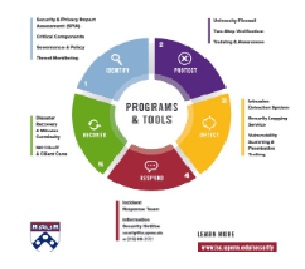
Security ServicesA list of complementary services and tools which improve the security poster of Penn, protecting the community-sensitive data and computing assets from unauthorized access. |
|
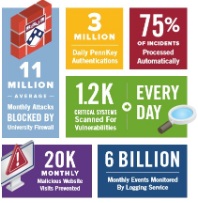
Special ProjectsThe Office of Information Security participates in campus-wide projects to significantly improve Penn's ability to identify and thwart cyber attacks. |

|
Policies & ProceduresThe Office of Information Security sets forth policies and procedures to conform to the principles of information confidentiality, integrity, and availability. |
|
Training & AwarenessTraining and awareness opportunities are offered to raise the community's awareness on safeguarding the University's confidential data and computing assets. This training includes three short videos focusing on important privacy and security topics. Awareness includes information security events, news and alerts, publications and more. |
| Telephone: (215) 898-2172 | Email: security@isc.upenn.edu |